Pokémon card scanner: how to scan a card with your phone, and what it tells you (and what it doesn't)
On this page
A Pokémon card scanner is an app feature that takes a photo with your phone camera and recognises which card you have: name, collector number, set, language and rarity. You don't need a flatbed scanner or to type anything. It works best with the card out of its sleeve, in soft light and with no glare. What it doesn't do is tell you whether the card is genuine or what condition it is in. In TradeMatches the scanner sits on the add-card screen: it recognises the card and puts it on your Have or Want list so you can find someone nearby to trade with.
App details checked on 12 November 2026. If you would rather read what is printed on a card yourself, without a scanner, see our guide to Pokémon card symbols and codes.
Three different things called "scanning a card"
Someone searching for a "Pokémon card scanner" can mean three unrelated things. It helps to know which one you need before installing anything.
| What it is | What it's for | What it doesn't do |
|---|---|---|
| Recognition app (what most people are looking for) | Identify the card with the camera and add it to a collection, a list or a price lookup | Doesn't check authenticity or condition |
| Document or flatbed scanner | Get a perspective-free image to measure centering or show the card in a sale | Doesn't know which card it is |
| Pokémon TCG Live QR reader | Redeem the code cards that come in packs and products to get content in the digital game | Doesn't recognise cards: it only reads the QR on the code card |
If you want to redeem a Pokémon TCG Live code, you do it from the game's Shop, under Redeem, by typing the code or reading the QR with the camera. You can also redeem on the official website. We cover it in the section on the Pokémon TCG Live code. The rest of this guide is about the first kind: recognising physical cards with your phone.
What a scanner reads on your card
The artwork alone isn't enough to know exactly which card you have. The same Pokémon appears in many sets, and one card can come in normal, holo and reverse holo versions. That's why a good scanner relies mostly on the small print at the bottom:
- The name, top left.
- The collector number, such as 025/182, at the bottom. It's what tells two cards of the same Pokémon apart within a set.
- The set symbol or code, next to the number. Japanese cards usually show a code such as SV2a.
- The language, worked out from the card's text. It matters because Japanese cards have their own numbering and their own sets.
- Rarity and finish (holo, reverse). This is the hardest part for any scanner, because it depends on the shine, not the text.
If the number and code are blurry in the photo, the scanner has to guess from the artwork, and that's where it goes wrong: it suggests a card from another set with the same illustration, or the normal version instead of the reverse. What each symbol means is in the guide to symbols and codes.
How to scan a card so it is recognised first time
- Take the card out of its rigid sleeve or toploader. The plastic reflects light right over the number. A thin, tight sleeve usually causes fewer problems, but no sleeve is safest.
- Use soft light that doesn't come from straight ahead. A window to one side, or a lamp pointed at the ceiling. Avoid the flash: on holos and full arts it leaves a white spot over the text.
- Put the card on a plain, dark background. A single-colour table or a playmat helps the app find the edges.
- Hold the phone parallel to the card, not tilted, and at the right distance for the card to fill the frame without being cut off on any side.
- Tap the screen over the bottom of the card to focus there. The number is the smallest and most important part.
- Clean the lens. A fingerprint on the camera blurs exactly the small text.
- One card per photo. Some apps read several at once, but if one comes out wrong you have to go over them all.
These are the same tricks as for taking good photos before a trade. To go further, see the parts on sleeve glare and phone settings.
Typical scanner mistakes and how to spot them
- It suggests the wrong set. This happens with reprints and with Pokémon that reuse an illustration. Always compare the number the app shows with the one printed on the card.
- It mixes up normal, holo and reverse holo. On a reverse, the shine covers the whole card except the artwork; on a holo, only the artwork. Check it yourself before saving. The difference is explained in holo vs reverse holo.
- It mixes languages. A card in Spanish and the same card in English share a number, but they aren't the same card in a trade. Check the language it detected.
- Promos. Promo cards have their own numbering and sometimes don't fit any set. If the scanner hesitates, look it up by hand.
- Japanese cards. They have sets that don't exist outside Japan. If the app has no Japanese catalogue, it will suggest the closest Western card, which isn't the same one. For Japanese rarities, see AR, SAR and SR on Japanese cards.
What a scanner doesn't tell you
A scanner recognises which card yours looks like. That's useful, but it has clear limits:
- It doesn't tell you whether the card is genuine. A well-printed fake has the same name and number, so the scanner recognises it just like the original. For that you need to look at the card in your hand: see the 10 signs of a fake Pokémon card and the fake card check.
- It doesn't measure condition or centering. A card with white corners and a perfect one give the same result. That's what the condition assistant and the centering calculator are for.
- The price some apps show is a guide only. Many take the US market price in dollars, while in Europe cards are mostly bought and sold in euros, at different prices. Before agreeing a trade, compare with the card price lookup and read how to value cards before trading.
Scanning Pokémon cards with TradeMatches, step by step
In TradeMatches the scanner does one specific job: it puts cards on your lists without searching for them by hand, so the app can show you collectors near you who have what you want or want what you have.
- Open the app and go to add card. Choose Pokémon.
- Before you pick a set you'll see the Scan card button, marked BETA.
- Line the card up inside the camera frame and take the photo. If you already have a photo, use Choose from gallery.
- The app reads the card's text and an AI identifies it: name, number, set code, language and rarity. It takes a few seconds.
- Check what it detected and tap Use this detection. The app looks for the exact card in its catalogue by language, number and set. It supports international and Japanese cards.
- Choose whether the card goes on your Have or Want list. From then on it counts towards your matches and the local radar.
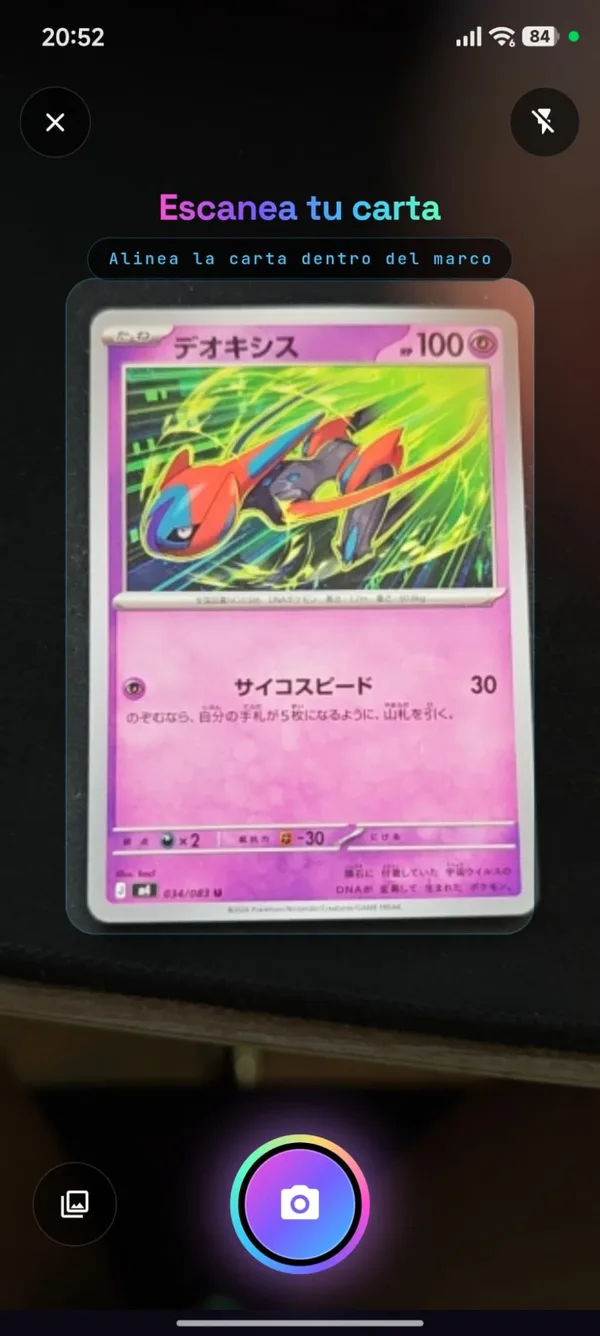
If it could only read the name, the app shows you the cards with that name so you can pick yours. If it read the number and set but that card isn't in the catalogue, it tells you and saves nothing. That way a wrong card doesn't sneak onto your lists.
What it costs
Every account gets one free scan of a Pokémon card to try it out. That attempt is used up when the photo is analysed, even if detection fails, so do it in good light. After that, AI scanning is a Premium feature with unlimited scans, at €2.39 a month + VAT or €21.50 a year + VAT. Adding cards by searching for them by hand stays free.
What the TradeMatches scanner doesn't do (yet)
- For now it only scans Pokémon cards. Magic, Yu-Gi-Oh!, One Piece, Lorcana, Riftbound, Star Wars: Unlimited and Flesh and Blood cards are added by searching the catalogue.
- It's in beta: always check the number and variant before saving.
- It doesn't show prices. Use the card price lookup on the website for that.
- It scans one card per photo.
- The photo is sent to our server only to identify the card. It doesn't need to show anything but the card.
TradeMatches and other scanner apps
Lots of apps scan Pokémon cards, and each is built for something different. The TCGplayer marketplace app, for example, scans cards to look up their price and sell them there. Since August 2025 it does so for every game sold on its marketplace, not just Magic, Pokémon and Yu-Gi-Oh!. Its market is the United States.
| If you want to… | Use… |
|---|---|
| Know what a card is worth in dollars and sell it in that market | A price app with a scanner, such as TCGplayer's |
| Know what it's worth in Europe | Compare in euros with the card price lookup |
| Keep an inventory of your collection | Any collection app with a scanner, or the collection value calculator |
| Trade your duplicates with someone in your area | TradeMatches: you scan, the card goes on Have or Want, and you see who nearby wants it or has it |
If you have lots of duplicates, the duplicate cards sorter helps you decide which ones are worth scanning first.
Frequently asked questions
Is there a free Pokémon card scanner?
Yes. Several apps let you scan for free with limits, and TradeMatches gives one free scan per account to try it. Almost all of them charge for unlimited scanning or extra features. Check what the free version includes on the store listing before installing.
Can I scan a Pokémon TCG Live code with a card scanner?
No. The QR on code cards is redeemed in Pokémon TCG Live itself, from the Shop, or on the official redemption website. A card scanner recognises cards; it doesn't redeem codes.
Does the scanner work with non-English cards?
Yes. It reads the card's text, so it works with cards in English, Spanish and other languages. In TradeMatches it also recognises Japanese cards and looks them up in the Japanese catalogue.
Why does the scanner give me another card with the same artwork?
Because it couldn't read the number or set code properly and went by the artwork. Take the photo again without a sleeve, with light from the side, focusing on the bottom of the card.
Does scanning a card tell me whether it's fake?
No. A fake has the same name and number as the original. To check, you have to look at the card: texture, colour, font, border and how it looks against the light.